
Follow Claude Code notifications and approvals on Mac
Updated · By Seb & Co
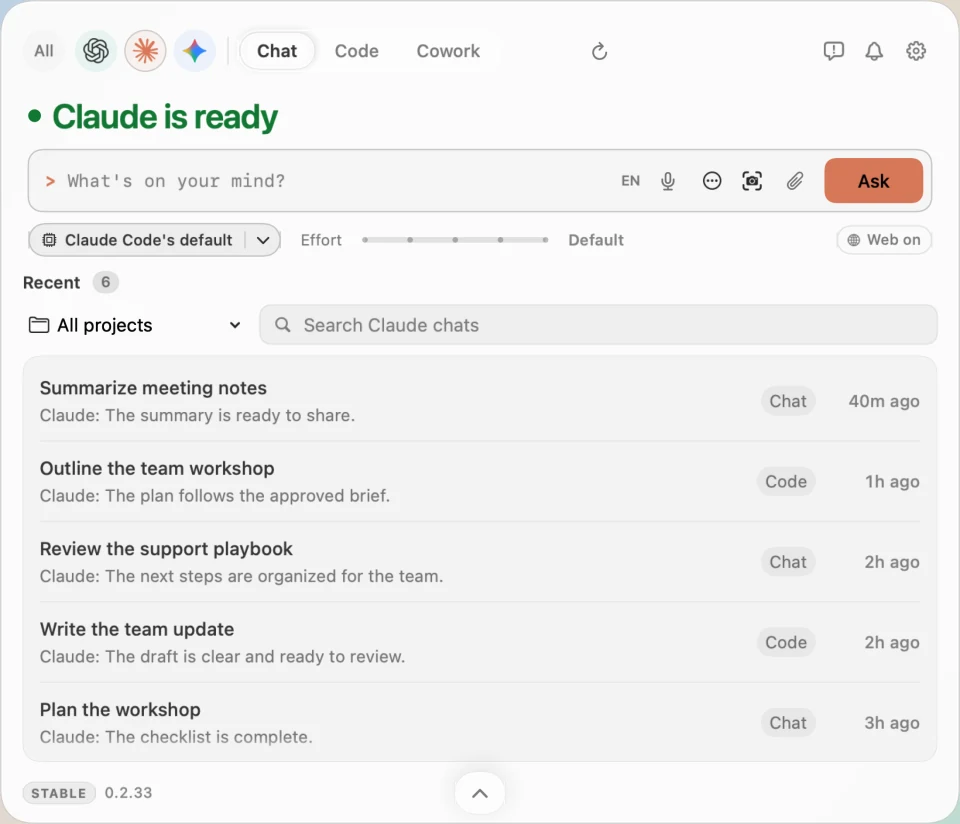
Lookout can follow supported Claude Code sessions you run in Terminal and bring their activity into its floating AI island. A session that is working, waiting for permission, asking a question, or finished can be easier to notice while you use another app. This guide covers the Terminal monitoring connection and the controls to check when an alert is missing.
On this page
Before you connect
Use Lookout on an Apple Silicon Mac running macOS 14 or later. You need valid Lookout access and a Claude Code installation and account that can run your chosen task. Lookout does not supply a Claude subscription or pay the provider’s usage charges.
If this is your first installation, start with the Lookout setup guide. Claude sign-in for conversations inside Lookout and monitoring sessions started in Terminal are separate setup steps.
Connect Claude Code in Terminal
- Open Lookout’s settings and select Claude under AI account.
- Expand Monitor Claude Code in Terminal.
- Choose Connect… when the connection is available. If the app reports another Lookout location, use the offered location-update action for your current installation.
- Check that the monitoring status reports a connection.
- Start a fresh Claude Code session in Terminal and run a task you can review safely.
Lookout uses its local integration to receive session events. Keep the app open while testing the connection. If settings show an access requirement or an installation problem, resolve the displayed issue before expecting session activity.
Follow session status from the island
Open Lookout to inspect the connected session while Claude Code works. The panel can represent activity and requests received through the integration. A waiting state deserves a closer look because the session may need a decision before it can continue.
Use a task with an outcome you understand for your first check, such as asking Claude to explain a small project file you are authorised to share. Observe whether the task appears and its state changes. Then use the compact island to follow progress while another app is in front.
Review questions and permission requests
When Lookout receives a supported permission request or question, open it and read the action or available answers. Choose the option you intend. Review the target file, requested command, and possible consequences before allowing a tool action.
A question can offer predefined choices or a field for another answer, depending on what Claude requests. After responding, follow the session again to check that it continues and produces the expected result. The provider’s permissions and connection determine which actions are available.
For a sample interaction, open the Lookout demo. The demo shows a staged request and result so you can explore the interface before connecting your own work.
Adjust pop-ups and completion sounds
In Lookout’s settings, review the controls for permission requests, questions, and sounds. Sound choices include events such as Claude finishing, a permission waiting, and Claude asking a question. Check the selected sound and whether sounds are enabled.
Quiet mode affects when pop-ups appear. Lookout also has a setting controlling sounds while you are looking at a session. Review those preferences together if the panel shows a new state but you do not hear or see the alert you expected.
Your Mac’s volume, audio output, and display selection also affect what you notice. Test one completion and one supported request after changing notification preferences.
Check a missing session or alert
- The session never appears. Check the Claude Code Terminal monitoring connection and start a fresh session after setup.
- The connection points to another app location. Use the location-update action shown in settings for the Lookout copy you are running.
- The session appears but there is no pop-up. Review quiet mode and the settings for permission requests and questions.
- The state changes but there is no sound. Review the sound toggle, event sound, focused-session preference, and Mac audio output.
- A request remains unresolved. Inspect the session and its original Terminal window, check for a pending provider prompt, and contact support if the integration has stopped updating.
Include your Lookout version, macOS version, and a brief description when reporting a problem. Keep credentials and unnecessary project or conversation content out of the report. The Privacy Policy describes submitted issue reports.
Using another assistant
Each assistant has its own connection and capabilities. For ChatGPT conversations, Codex coding work, and Terminal Codex status, read Using ChatGPT and Codex in Lookout. Lookout’s supported AI section introduces the other available connections.